
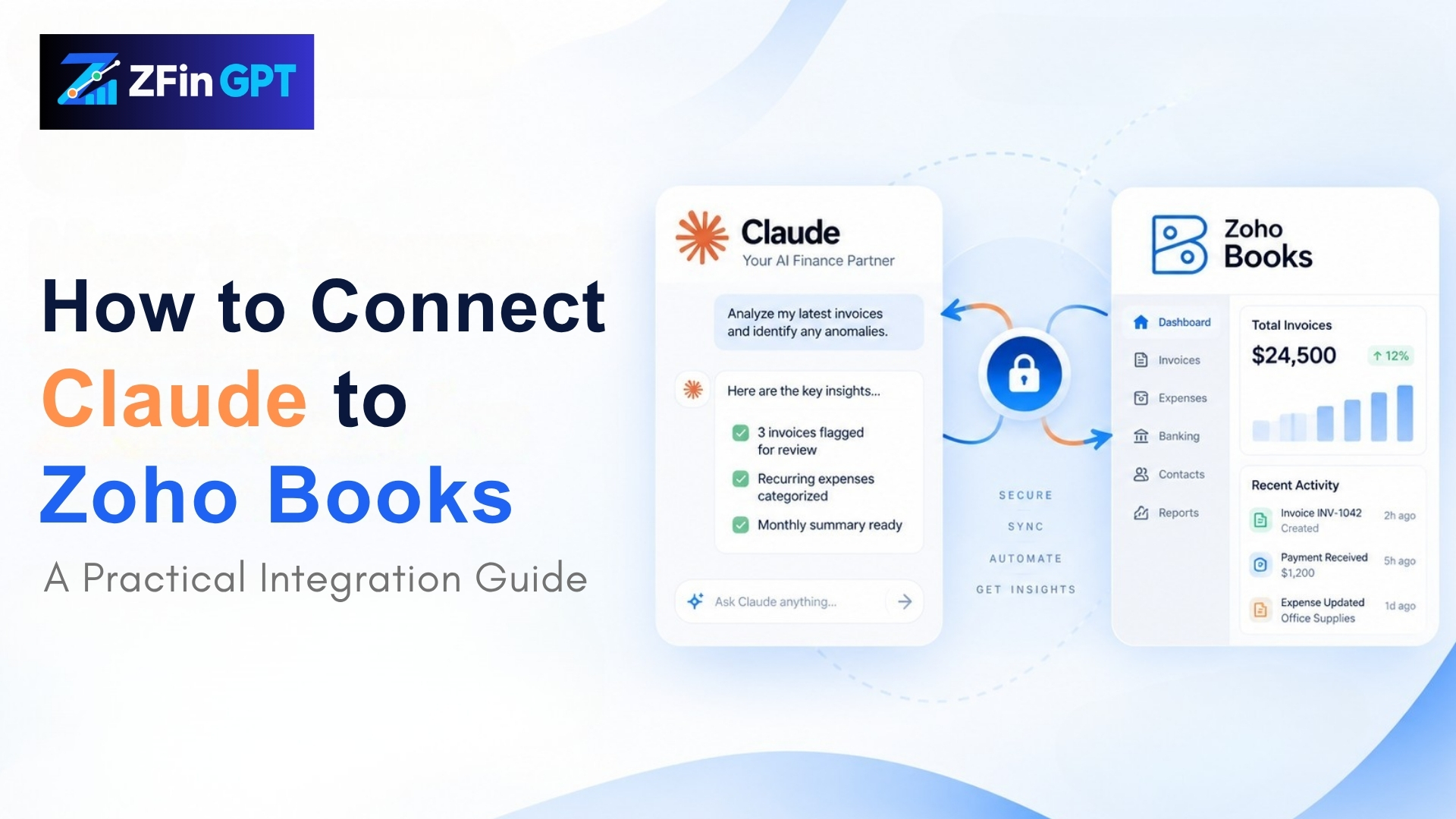
How to Connect Claude to Zoho Books: A Practical Integration Guide
What if your finance team could ask Claude about invoices, payments, customers, or cash flow — and get answers pulled straight from your Zoho Books data?
That’s the idea behind connecting Claude to Zoho Books. But it isn’t as simple as flipping a switch. A working integration needs secure API access, scoped permissions, an MCP (Model Context Protocol) layer, and a workflow that keeps a person in the loop wherever money decisions happen. For teams exploring Zoho Books AI automation, that distinction matters more than the marketing usually lets on.
What Connecting Claude to Zoho Books Actually Means
Claude has no native access to your Zoho Books account. Zoho Books exposes REST APIs that authorized applications can call, authenticated through OAuth 2.0. An MCP server sits between those APIs and Claude, translating Zoho’s endpoints into tools Claude can actually call.
The chain looks like this:
Zoho Books → REST API → MCP Server → Claude → Your Workflow
MCP is a protocol, not a product — it standardizes how AI models discover and call external tools, so you’re not hand-building a custom integration for every AI you might use later. Concretely, that means connecting Claude to Zoho Books through Claude.ai’s remote MCP connectors, through Claude Desktop’s local MCP server configuration, or through the Claude API’s MCP connector parameter, depending on where your team works.
Why Bother?
Before automating anything, ask where your finance team is spending time collecting information instead of acting on it. Someone checks payment status before replying to a customer. Someone else builds a cash flow summary every Monday. Someone spends the last week of the month compiling numbers for close.
Those are the tasks worth automating first. With a working connection, Claude can help with:
- Cash flow and AR summaries
- Invoice and payment status lookups
- Customer balance checks
- Draft replies to overdue-invoice emails
- Month-end reporting prep
Claude prepares the draft or the summary. A person reviews it and decides what happens next.
How to Actually Set It Up
1. Pick one workflow
Don’t try to automate the whole finance stack on day one. Start with something narrow and measurable — a weekly cash flow summary, or drafting invoice follow-up emails. A focused pilot is the only way to know whether the integration is actually saving time.
2. Create a Zoho Books API client and scope it tightly
In the Zoho API Console, register a Server-based Application to get a Client ID and Secret, then generate OAuth 2.0 tokens scoped to only what the workflow needs — ZohoBooks.invoices.READ for an invoice-summary tool, for example, not blanket read/write access. An agent that only needs to report on invoices shouldn’t be able to modify them.
3. Stand up an MCP server that wraps those endpoints
This is the piece most guides skip. You need an MCP server — self-hosted or from an existing Zoho MCP implementation — that exposes specific Zoho Books functions (like “get invoice by customer” or “list overdue payments”) as callable tools, each mapped to a scoped API call. This is what turns your REST API into something Claude can actually use in conversation, rather than something only your backend code can call.
4. Connect the server to Claude
Add the MCP server’s URL (for a remote server) or launch command (for a local one) to Claude’s connector settings. Test it with a narrow, low-stakes question first — “what’s the balance on invoice #1042” — before pointing it at anything customer-facing.
5. Put a human in the approval loop
If a customer emails asking about an overdue invoice, don’t let Claude send a reply automatically. Have it pull the relevant data, draft the response, and route it to a team member to approve or edit before it goes out. That’s what makes this practical for finance teams that want speed without giving up control.
Can This Work With a Legacy ERP Instead of Zoho?
Yes, as long as the legacy system exposes a usable API. An MCP wrapper can sit in front of nearly any API-accessible ERP, which means older finance systems can become AI-accessible without a full replacement — the requirements are the same: stable API access, clear authentication, and scoped permissions.
Is MCP Better Than Zapier for Finance Workflows?
They solve different problems. Zapier is built for app-to-app triggers — when X happens, do Y. MCP is built to give an AI model structured, on-demand access to tools and data so it can reason about a request and decide what to call. If you need a simple notification when an invoice is paid, Zapier is the right tool. If you want Claude to answer open-ended questions about your financial data, MCP is the better fit.
How Long Does MCP Implementation Take?
It depends entirely on the API and the number of approval steps involved. A single well-documented workflow against a modern API can be running in days. A legacy ERP with custom auth and multiple review gates takes longer. The practical path is: audit your workflows, pick the highest-value one, build a narrow pilot, and expand once it’s proven out.
Getting Started
You don’t need to replace Zoho Books, migrate your data, or automate everything at once. Start with one workflow, scope the permissions tightly, and keep a person reviewing the output until you trust it.
If your team is losing hours to invoice chasing, report prep, or repetitive email replies, an automation audit is the fastest way to find out where this actually pays off.